What a network ad blocker is
Before a phone, laptop or TV can load anything from the internet, it has to look up the address of each server involved. This lookup is called DNS, and it works like a phone book: the device asks for a name such as ads.example.com and gets back a number to connect to. Your router normally passes these questions on to your internet provider.
A network ad blocker sits in the middle and answers the questions itself. For ordinary sites it passes back the real answer. For names on a list of known advert and tracking servers, it answers that no such place exists, so the advert never loads. Because every device on your Wi-Fi asks the same blocker, it covers phones, laptops, smart TVs, games consoles and smart speakers without installing anything on them.
On your own server or hosted for you
The first choice is where the blocker runs.
| AdGuard Home, on your server | NextDNS, hosted | |
|---|---|---|
| Setting up | A one-click app, then a setup page | Nothing to install, one setting per device or router |
| Cost | Free | Free for 300,000 lookups a month, then a paid plan |
| Away from home | Only through your own remote access | Works anywhere |
| If it stops | The house can’t load sites until it’s back | The provider keeps it running |
| Who sees your lookups | Only you | NextDNS, unless you turn its logs off |
If you have a machine that’s on all the time, AdGuard Home keeps everything inside your house. If you don’t, NextDNS gets you blocking in five minutes. When a NextDNS free account goes past its monthly allowance, it keeps answering but stops blocking until the next month, and a house full of devices can get there.
What it can and can’t block
It blocks banner and pop-up adverts from ad networks, trackers inside apps and on smart TVs, many malware and scam sites, and the reports that some devices send home about how you use them.
It can’t block adverts that come from the same address as the thing you want. That includes YouTube’s video adverts and sponsored posts inside social media apps. Some devices also ignore your router and use a DNS server of their own. For the browser, add uBlock Origin from the privacy tools page, which removes what a network blocker can’t reach.
What it needs
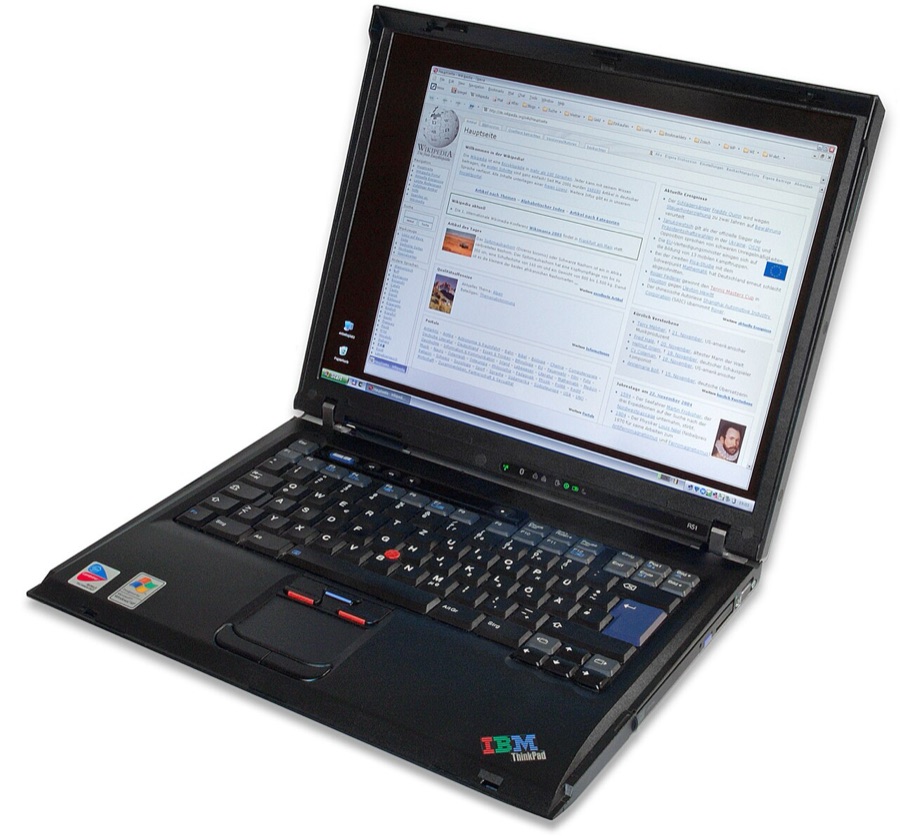
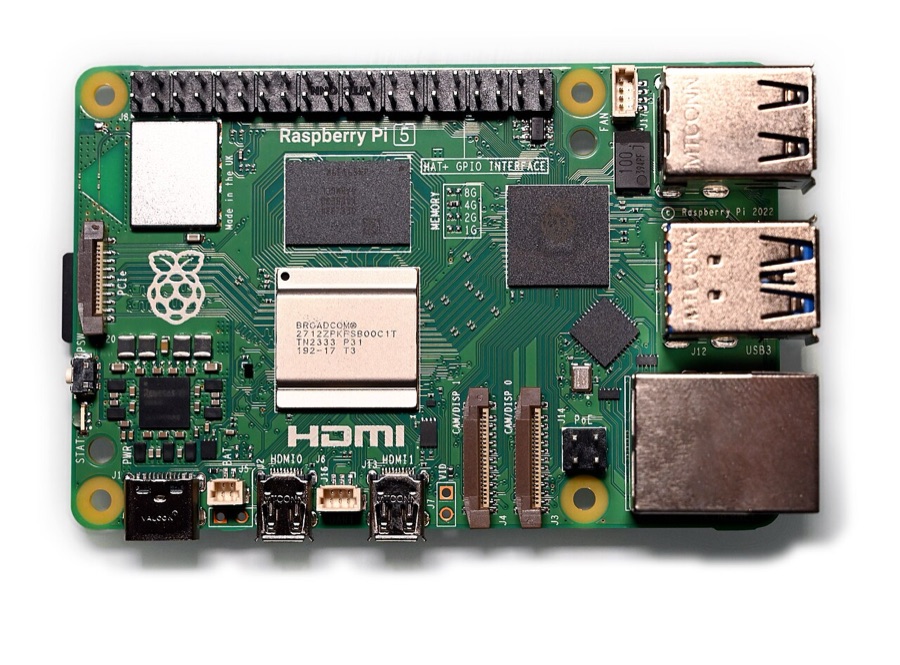
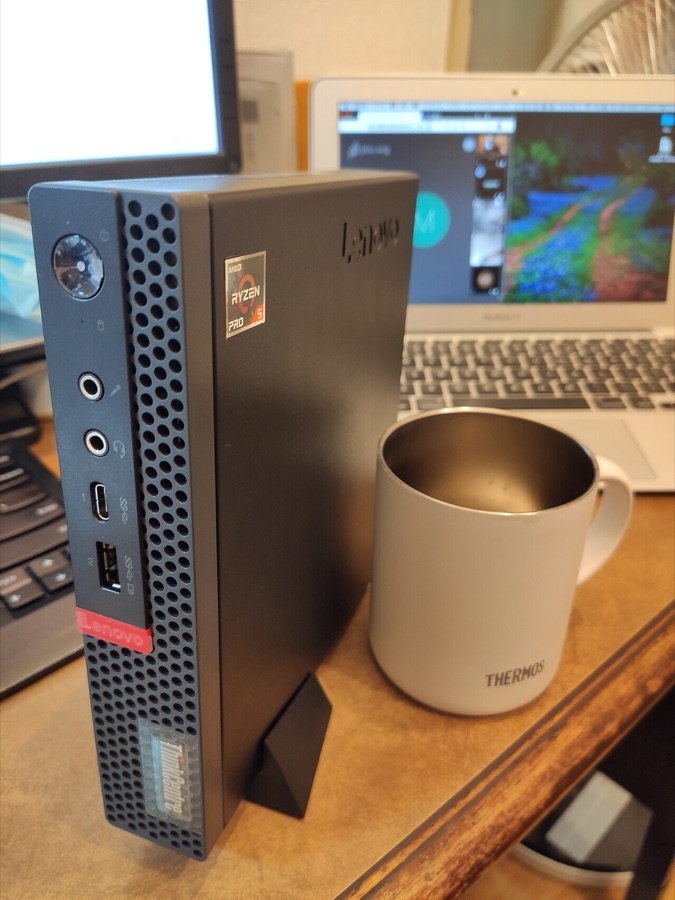
- A computer that stays on. A Raspberry Pi, an old laptop, a mini PC or the home server you already have. AdGuard Home needs very little memory or processing power. Plug it into the router with a network cable if you can.
- An address that never changes. In your router, set a DHCP reservation (some routers call it a static lease) for that machine, so it keeps the same local address.
- Your router’s admin login, to change one setting. Some routers supplied by internet providers don’t allow it. In that case you set the DNS server on each device instead, or use NextDNS on phones and laptops.
How AdGuard Home fits in
- A setup page in your browser. A short wizard asks for a username and password and which ports to use, and you’re done.
- A dashboard. Shows how many lookups each device makes and what share was blocked.
- A query log. Lists every lookup as it happens. If something stops working, find the blocked line and choose Unblock.
- Per-device settings. Give a child’s tablet stricter rules than your own laptop.
- Blocked services. One switch to block a whole service, such as a social network or a game, without hunting down its addresses.
- Parental control and safe search. Blocks adult sites, and forces safe search on the main search engines.
- Encrypted lookups. Sends your lookups out encrypted, so your internet provider can’t read them on the way.
The easy way to set it up
On a home server running ZimaOS (or CasaOS), with no terminal:
- Reserve the server’s address in your router, as above, and write it down.
- Install AdGuard Home from the ZimaOS App Store with one click, then open it. The setup wizard appears.
- On the second screen, change the Admin Web Interface port from 80 to 3000. Leave the DNS server on port 53. The ZimaOS version of the app only makes the setup page’s port reachable from other devices, so if you keep 80, the dashboard disappears once setup ends.
- Choose a username and password, then finish. The wizard may list addresses beginning with 172. Those are internal to the app, so ignore them and use the server’s normal address.
- Point your router at it. In the router’s DHCP or LAN settings, set the DNS server to your server’s address and leave the second DNS box empty, because a second server gives adverts another way in.
- Check it’s working. Turn Wi-Fi off and on again on your phone, then watch the dashboard’s query count climb as you browse.
The step-by-step guide walks through these steps in detail, with what to do if something goes wrong. It also has a route for people who’d rather use Docker on Linux. On CasaOS installed on top of Ubuntu, Ubuntu’s own DNS service already uses port 53 and the app won’t start until it’s moved; that fix needs the terminal, and the guide’s Docker route shows it.
With no server at all, using NextDNS:
- Go to nextdns.io and create a configuration. The free plan needs no payment details.
- Open the Setup tab, which gives instructions for each kind of device. On Android, paste the address it shows into the Private DNS setting. On iPhone and iPad, install the profile it offers. Windows and Mac have small apps, or you can set it once on the router.
- Choose your lists. On the Privacy tab, add a blocklist. The NextDNS ads and trackers list is a good start.
Questions people ask
What happens if the server is switched off?
Devices can’t look up any website, so the internet seems to stop for the whole house. Set the router’s DNS back to automatic until the server is back. Don’t add a public DNS server as a spare, because devices use either one at random and adverts get through.
Will it block YouTube adverts?
No. They come from the same addresses as the videos, so blocking them would block YouTube. Firefox with uBlock Origin handles them in the browser.
Can my phone use it when I’m out?
Your home blocker only answers devices on your home network. With Tailscale from the remote access page, and Tailscale’s DNS setting pointed at your server, your phone can keep using it from anywhere. Otherwise, NextDNS on the phone works wherever you are.
AdGuard Home or Pi-hole?
Both do the same job, and both are one-click installs in the ZimaOS app store. AdGuard Home has encrypted lookups and parental controls built in, and a simpler first run. Pi-hole has the bigger community. If you choose Pi-hole on ZimaOS, its admin password starts out as casaos, so change it in the app’s settings straight away.
Will it slow my internet down?
No. Lookups are tiny, and AdGuard Home remembers recent answers so repeat lookups come back faster. Pages often load quicker, because the adverts are never downloaded.